Guide
No-Login Approval Link Guide for Client Content
A no-login approval link is a single URL a client can open to review a draft post, leave comments or a change request, and approve it — without creating an account. This guide covers how the workflow works, how to set one up well, and the mistakes that undo its benefit.
Last updated July 9, 2026 · Red Falcon HQ, operated by Wade Digital
Why no-login links matter for client approvals
Every extra step between "here is your content" and "yes, approved" is a chance for a client to delay. Asking a client to create a password, verify an email, and learn a new dashboard before they can even see the post adds friction at exactly the moment you want a fast decision. A no-login link removes that step: the client clicks, sees the post in context, and can respond immediately from a phone or laptop.
This matters most for freelancers and small agencies juggling several clients at once. You are not just asking one client to adopt a new tool — you are asking every client, some of whom review content once a month and will not remember login details between visits.
How the workflow works, step by step
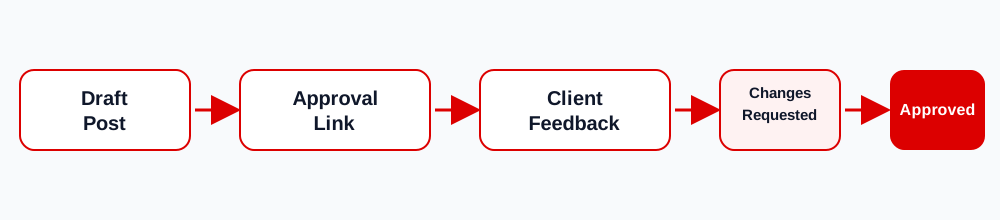
1. Draft the post
Prepare the caption, creative, channel, and intended publish date in your workspace before requesting a decision. Incomplete drafts lead to partial or unclear feedback.
2. Generate the approval link
Create a unique link tied to that specific post. The link should show only the relevant content and its history — not your entire workspace or other clients' posts.
3. Send the link with context
Include the post title, channel, and any deadline in your message. The client should know exactly what they are opening before they click.
4. Client reviews and responds
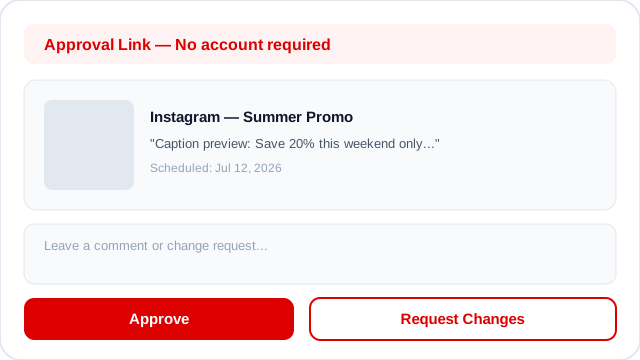
The client opens the link, reads the post, and either approves it or leaves a comment describing the change they want. No account creation is required at this step.
5. Track the decision
The approval status updates automatically, with a timestamp, so your team can see what is approved, what needs changes, and what is still waiting — without asking.
6. Revise and re-send if needed
If changes are requested, update the post and send the same link again (or a refreshed version). Keep the original comment and the revised draft connected so nothing gets lost.
Setup checklist
- ✓Every post has one clear client approver identified before the link is sent
- ✓The link shows the caption, creative, channel, and date together
- ✓There is an explicit approve / request changes decision, not just a comment box
- ✓Comments and change requests stay attached to the specific post and version
- ✓Approval timestamps are recorded automatically, not tracked manually
- ✓Reminder messages reference the same link rather than starting a new thread
- ✓Approved content can be exported with its publishing notes when it's time to schedule
Common mistakes to avoid
- Sending a link with no context. A bare link with no post title or deadline makes clients hesitate to open it.
- Treating a comment as approval. A reply like "looks good!" is not the same as an explicit approval action — make the decision unambiguous.
- Editing content after approval without re-review. If a post changes materially after sign-off, send it back through the approval step again.
- Losing the comment history. If revisions disconnect from the original feedback, your team ends up guessing what the client actually asked for.
- Assuming a link guarantees a fast reply. Removing login friction helps, but response time still depends on the client and your follow-up process.
Frequently asked questions
Do clients need to install anything?
No. A no-login approval link opens in any browser, including on mobile, with no app or account required.
Are these links secure?
Links should use unguessable tokens scoped to a single post. Avoid putting highly sensitive information in shared drafts. See our Privacy Policy for details.
What if a client loses the link?
Resend it from your workspace. The link stays tied to the same post and approval history.
Does this replace my scheduling tool?
No. It handles the approval step before publishing. Approved content is exported or copied into your existing scheduling workflow.
Related reading
Try a no-login approval link
Create a draft post and send your first approval link in a few minutes.